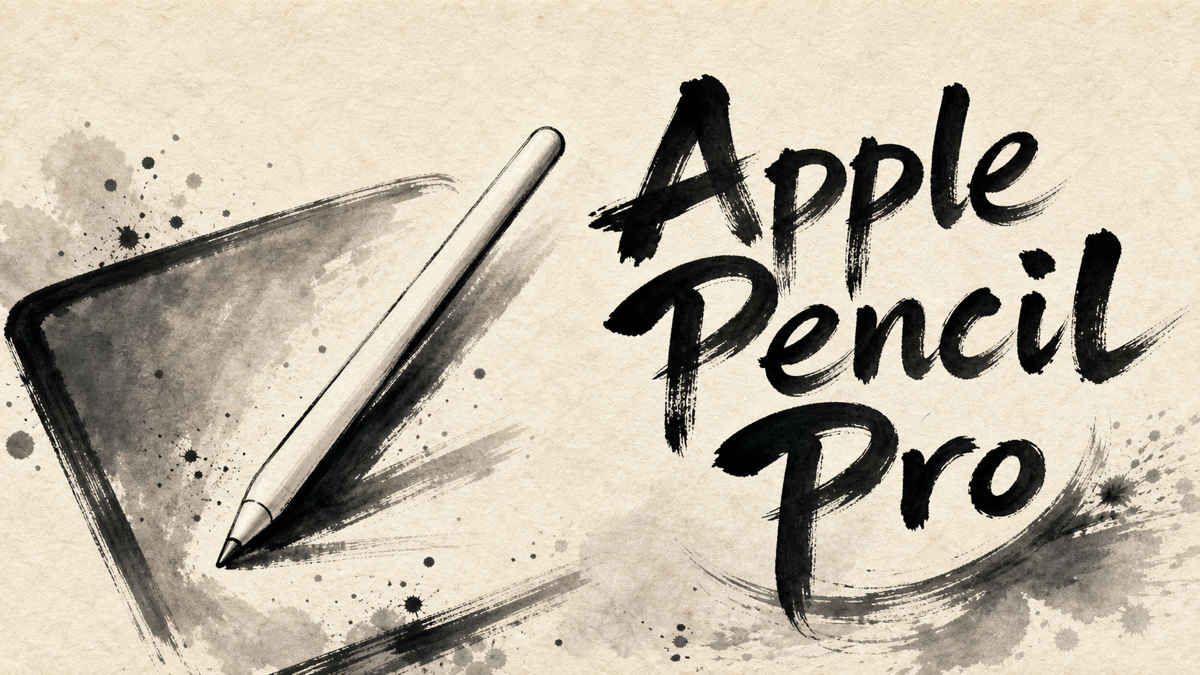
Apple Pencil Pro is easy to misunderstand if you look only at the feature list. Squeeze, barrel roll, haptic feedback, hover, double tap, Find My, magnetic charging: the list sounds impressive, but the real question is narrower. Do those extras change daily iPad use enough to justify buying the top Apple stylus?
Japanese user feedback points to a clear split. People who draw, annotate, take handwritten notes, or move between tools inside creative apps often see Apple Pencil Pro as the right companion for a modern iPad. People who mainly want a simple pen for occasional notes are more likely to notice the price, compatibility limits, and small handling annoyances.
What matters is not whether every iPad owner needs it. Apple Pencil Pro works best when the iPad is already part of a writing or drawing routine, not just a tablet that sometimes needs a pointer.
Amazon.com
Apple Pencil Pro
Check current availability on Amazon.com
As an Amazon Associate I earn from qualifying purchases.
What’s Apple Pencil Pro
Apple Pencil Pro is Apple’s higher-end stylus for supported iPad Pro, iPad Air, and iPad mini models. It is designed for drawing, handwriting, annotation, and creative apps rather than general tablet navigation alone.
The main differences from simpler stylus options are the interaction features. Apple lists squeeze for opening tools, barrel roll for changing brush orientation, haptic feedback for confirming actions, hover for previewing where the tip will land, double tap for switching tools, Find My support, and magnetic pairing and charging.
Compatibility is one of the most important details. Apple Pencil Pro does not work with every iPad, and Japanese reviews included multiple reminders that buyers should check their exact iPad model before choosing it. For people upgrading from an older iPad or older Apple Pencil, that compatibility boundary can be the real purchase trigger.
Positive Reviews
Praise is strongest when users are writing or drawing often enough for the extra controls to disappear into the workflow.
- Many users value the official Apple feel: stable pairing, consistent behavior, and fewer worries than with third-party pens.
- Writing and drawing feel are repeatedly described as smooth, natural, and precise enough for notes, PDF markup, and illustration.
- Squeeze and double tap are useful because they reduce trips back to the screen for tool changes.
- Haptic feedback helps users know that a tool switch or squeeze action has registered.
- Barrel roll is especially meaningful for drawing apps, where brush angle and expressive strokes matter.
- Magnetic charging and pairing are a major convenience, especially compared with older charging methods or USB-C pens that need separate handling.
- Find My support is a small but reassuring feature for an expensive accessory that is easy to misplace.
Negative Reviews
The criticism is less about whether Apple Pencil Pro works and more about whether it fits the buyer’s iPad, hand, and actual use case.
- Price is the most common hesitation, even among users who otherwise like the product.
- Compatibility is easy to get wrong because Apple Pencil Pro works only with selected newer iPad models.
- For simple notes or occasional annotation, several users see it as more stylus than they really need.
- It is not a complete replacement for finger navigation; users who want to operate the whole iPad with the pen may be disappointed.
- Some comments mention squeeze or double-tap misfires, especially depending on grip style.
- A few users find the body long, slightly heavy, slippery, or tiring during longer sessions.
- Battery expectations vary, with some users happy about magnetic charging and others frustrated if the Pencil is left away from the iPad.
Product Review Summary
Drawing & Handwriting
Apple Pencil Pro makes the most sense when the iPad is a real writing or drawing surface.
Pros
- Japanese feedback is strong for illustration, handwritten notes, and PDF markup.
- Pressure, tilt, hover, and low-friction writing feel are treated as everyday benefits rather than spec-sheet extras.
- Users moving from older or cheaper pens often notice fewer small frustrations.
Cons
- People who only write short notes may not use enough of the feature set.
- The experience still depends on the iPad model, app support, screen protector, and grip.
- Buyers looking only for a basic pointer may be paying for creative controls they will ignore.
For drawing and serious handwriting, the Pro label has practical meaning; for casual taps and short notes, it can be too much.
Gesture Controls & Haptics
The extra controls are the feature group that most clearly separates this model from simpler styluses.
Pros
- Squeeze can bring tool controls closer to the hand.
- Double tap and haptic confirmation make pen-to-eraser or tool changes feel more certain.
- Barrel roll adds value in drawing apps where brush direction matters.
Cons
- Some users need time to adjust their grip to avoid accidental activation.
- App support can affect how impressive the features feel.
- The controls matter less if the user mostly writes plain text or marks up documents.
These controls are not just novelty features, but they reward people who are already doing stylus-heavy work.
Compatibility & Value
Japanese reviews make compatibility one of the biggest purchase checks.
Pros
- For owners of supported iPad Pro, iPad Air, or iPad mini models, it is the most complete Apple stylus option.
- Users who tried cheaper pens often appreciate the official integration.
- The combination of charging, pairing, precision, and app controls can justify the cost for frequent use.
Cons
- It does not support many older iPads that worked with earlier Apple Pencil models.
- The product name can make the lineup feel more confusing than it should.
- If the iPad itself is not used for creative or handwritten work, the price is hard to defend.
The first question is not whether Apple Pencil Pro is good; it is whether the buyer owns the right iPad and has the right routine.
Charging, Carrying & Comfort
Daily convenience matters because this is an accessory that has to be ready when inspiration or work appears.
Pros
- Magnetic attachment keeps pairing and charging simple.
- Carrying it on the side of the iPad can reduce the chance of finding it empty when needed.
- Find My support gives some reassurance when it is misplaced.
Cons
- Leaving it away from the iPad can make battery behavior feel less predictable.
- The smooth body can be slippery for some hands.
- A few users want better grip, a shorter body, or a carrying case that fits more naturally.
Apple Pencil Pro is convenient when it lives on the iPad, but less ideal for people who throw accessories loose into a bag.
Amazon.com
Apple Pencil Pro
Check current availability on Amazon.com
As an Amazon Associate I earn from qualifying purchases.
Summary
Apple Pencil Pro receives strong Japanese feedback from users who treat the iPad as a notebook, sketchbook, document-markup tool, or creative workspace. Its best features are not isolated tricks; they are small workflow improvements that matter more the longer the Pencil stays in your hand.
It is recommended for:
- Supported iPad owners who draw, take handwritten notes, or annotate documents often.
- Users who want official Apple pairing, charging, and app integration.
- People who will use squeeze, double tap, hover, pressure, tilt, and barrel roll in real apps.
- Buyers replacing an older Apple Pencil or a third-party pen that felt limiting.
It may not be the best choice for:
- Owners of iPads that are not compatible with Apple Pencil Pro.
- People who only need occasional handwritten notes.
- Buyers who mainly want a pen-like replacement for finger navigation.
- Users who are sensitive to grip comfort, accidental gestures, or accessory price.
Apple Pencil Pro is most convincing when it becomes part of how someone creates or studies on an iPad; without that routine, its best features may spend more time attached to the side of the tablet than changing the work.
Comments