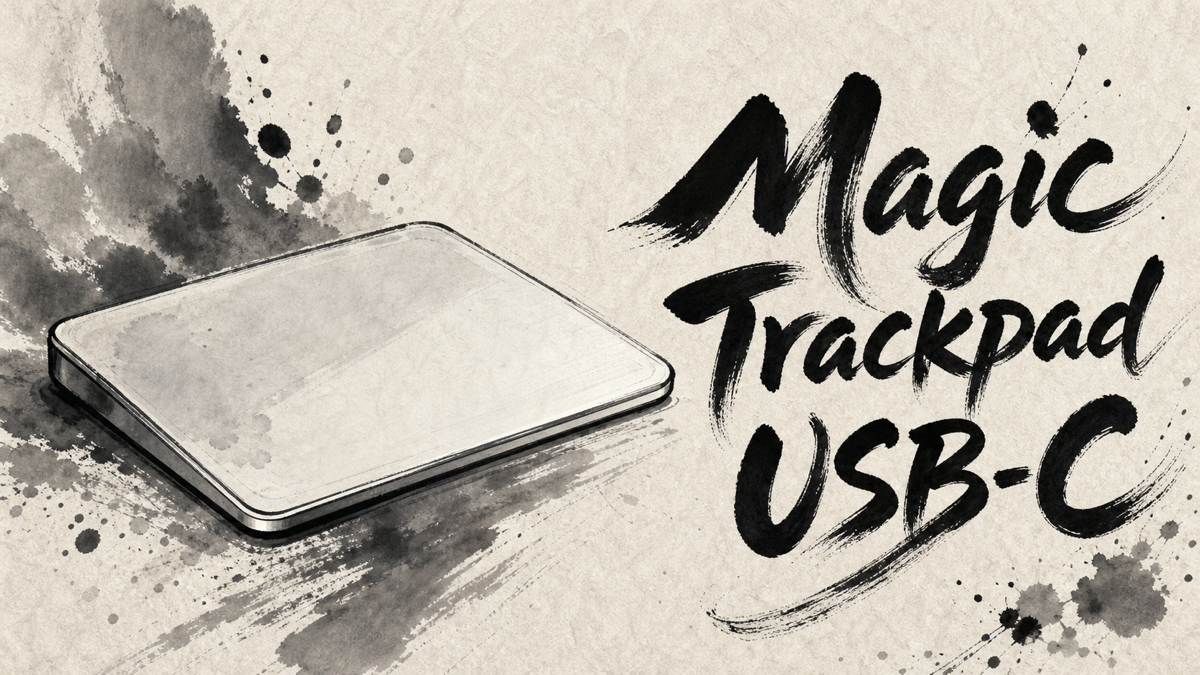
Apple Magic Trackpad USB-C is not an exciting upgrade on paper. The shape is familiar, the purpose is familiar, and the biggest visible change is the port. Japanese user feedback makes the case for it anyway: for the right Mac setup, this is less a gadget purchase than a way to keep laptop-style gestures when the laptop is no longer under your hands.
The most convincing praise comes from people using a MacBook on a stand, a Mac mini on a desk, or an external keyboard and monitor. They do not talk about the trackpad as a novelty. They talk about getting back the gestures, smooth scrolling, zoom control, and pointer movement they already rely on.
The caution is simple. If you are not already attached to Apple’s trackpad behavior, the price can feel hard to defend. The surface is large, the device takes desk space, and a few users ran into compatibility or purchase-experience friction. Magic Trackpad USB-C is polished, but it is not a cheap universal mouse replacement.
Amazon.com
Apple Magic Trackpad – White Multi-Touch Surface
Check current availability on Amazon.com
As an Amazon Associate I earn from qualifying purchases.
What’s Apple Magic Trackpad USB-C
Apple Magic Trackpad USB-C is Apple’s external wireless trackpad for Mac, iPad, and Apple Vision Pro users who want Multi-Touch and Force Touch input away from a built-in laptop trackpad. The USB-C version keeps the familiar large glass surface and replaces the older Lightning charging connection with USB-C.
That port change matters because many buyers are not starting from zero. They already know whether they like trackpad gestures. For those users, the question is usually whether a desktop Mac, external monitor setup, or raised MacBook desk arrangement can feel as natural as using a MacBook directly.
Compatibility also matters. Apple’s official page lists current operating-system requirements for Mac, iPad, and Apple Vision Pro. Japanese reviews included a few reminders that buyers should check software support before assuming every gesture will work immediately.
Positive Reviews
The praise clusters around people who already use gestures as part of their normal Mac rhythm.
- The strongest approval is for Mac desk setups where the built-in MacBook trackpad is no longer reachable.
- Users like that it preserves familiar MacBook-style gestures for scrolling, Mission Control, desktop switching, and zoom.
- Pointer movement is often described as smooth and precise, especially compared with cheaper trackpads or ordinary mouse movement.
- Several users say it works especially well with Mac mini, external monitors, laptop stands, and external keyboards.
- Some buyers prefer it to Magic Mouse because the gestures feel more natural for macOS.
- USB-C charging is a quiet but welcome upgrade for people trying to remove Lightning cables from the desk.
- The large surface is a positive for users who want room for multi-finger gestures.
- Apple design consistency matters to some buyers, especially beside a Magic Keyboard or a clean Mac desk.
- A few comments also mention iPad use, which broadens the appeal beyond Mac-only desks.
Negative Reviews
The critical comments do not usually attack the tracking quality. They question whether the trade makes sense for every desk and every buyer.
- Price is the most repeated hesitation. Even satisfied users often call it expensive.
- The body can feel large, especially on smaller desks or next to a mouse and keyboard.
- Some users want a smaller version closer to a MacBook trackpad size.
- Buyers should check macOS or iPadOS requirements before expecting every gesture to work.
- A few purchase complaints were about packaging, return handling, or unclear compatibility rather than the trackpad surface itself.
- Durability is not a dominant complaint, but a few users still worry because the product is expensive to replace.
- People who prefer physical buttons, a wheel, or fast mouse movement may not see enough reason to switch.
Product Review Summary
Mac Desk Setups
Magic Trackpad USB-C makes the most sense when a MacBook is lifted, closed, or replaced by a desktop Mac.
Pros
- It brings MacBook-like gestures to a separate keyboard and monitor setup.
- Mac mini and external-display users appear to be a strong audience.
- It can reduce the feeling that a desktop setup is less fluid than a laptop.
Cons
- It adds another object to the desk rather than replacing every input need.
- People who already work comfortably with a mouse may not gain much.
- The value depends heavily on whether gestures are already part of your workflow.
For a desk Mac, the trackpad is less about pointing and more about keeping macOS movement intact.
Gestures, Precision & Feel
Japanese feedback is strongest when users talk about the way the surface responds under the fingers.
Pros
- Smooth scrolling, swipe gestures, and pinch actions are recurring positives.
- Pointer movement and fine control receive strong comments.
- Some users find it more natural than Magic Mouse for macOS navigation.
Cons
- Trackpad comfort depends on hand position, finger movement, and habit.
- One user noted hand or wrist effort as a reason not everyone needs it.
- Buyers who want tactile wheel clicks or side buttons will still prefer a mouse.
The best reason to buy it is not USB-C. It is the gesture language of macOS.
USB-C, Compatibility & Setup
The USB-C update is small, but it removes one of the old annoyances.
Pros
- USB-C charging fits better with newer Macs, iPads, and desk cables.
- Pairing and Apple-device integration are viewed as easy when the setup is compatible.
- The rechargeable design keeps ownership simple.
Cons
- Compatibility requirements should be checked before purchase.
- Some frustration came from expecting gestures to work before the needed OS update.
- USB-C alone is not a reason to upgrade if the older model still works well.
USB-C is a good convenience upgrade, not a reinvention.
Size, Price & Buyer Fit
This is where the most realistic buying decision happens.
Pros
- The large surface helps multi-finger gestures feel spacious.
- The build and design fit neatly with Apple’s desktop accessories.
- High satisfaction can make the price easier to accept for daily Mac users.
Cons
- The price is high for a pointing device.
- The footprint can be too much for compact desks.
- People who only need basic pointing and scrolling can spend less elsewhere.
Magic Trackpad USB-C is easiest to justify when it will be touched all day, not occasionally.
Amazon.com
Apple Magic Trackpad – White Multi-Touch Surface
Check current availability on Amazon.com
As an Amazon Associate I earn from qualifying purchases.
Summary
Japanese user feedback presents Apple Magic Trackpad USB-C as a very strong accessory for a specific kind of user: someone who already likes the MacBook trackpad and wants that same gesture-first control at a desk. The strongest use cases are Mac mini setups, MacBooks on stands, clamshell work, external monitors, and external keyboards.
The weaknesses are practical rather than mysterious. It is expensive, it takes space, and it depends on the buyer actually wanting Apple’s trackpad style. Compatibility should be checked before purchase, especially if the goal is full gesture support on an older system.
It is recommended for:
- MacBook users who want the same gesture feel in a desk setup.
- Mac mini or desktop Mac users who prefer trackpad gestures over mouse movement.
- People using an external monitor, laptop stand, or external keyboard.
- Apple users who want USB-C charging across more desk accessories.
- Buyers who already know they like Multi-Touch trackpad control.
It may not be the best choice for:
- Users who mainly want a low-cost pointing device.
- People with very limited desk space.
- Buyers who prefer a mouse wheel, side buttons, or fast physical mouse movement.
- Anyone who is unsure whether their Mac or iPad software supports the needed gestures.
- Users who already own a working Lightning Magic Trackpad and do not care about USB-C.
Buy it for the way your fingers move through macOS. Skip it if you only need a cursor.

Comments